
Using the dashboard
How to use the Candidate Check Dashboard
The Candidate Check Dashboard gives you one place to find applications, understand their status and see what needs your attention.
Where to find it
- View Check Status. Select this from the top-left menu in the Client Portal.
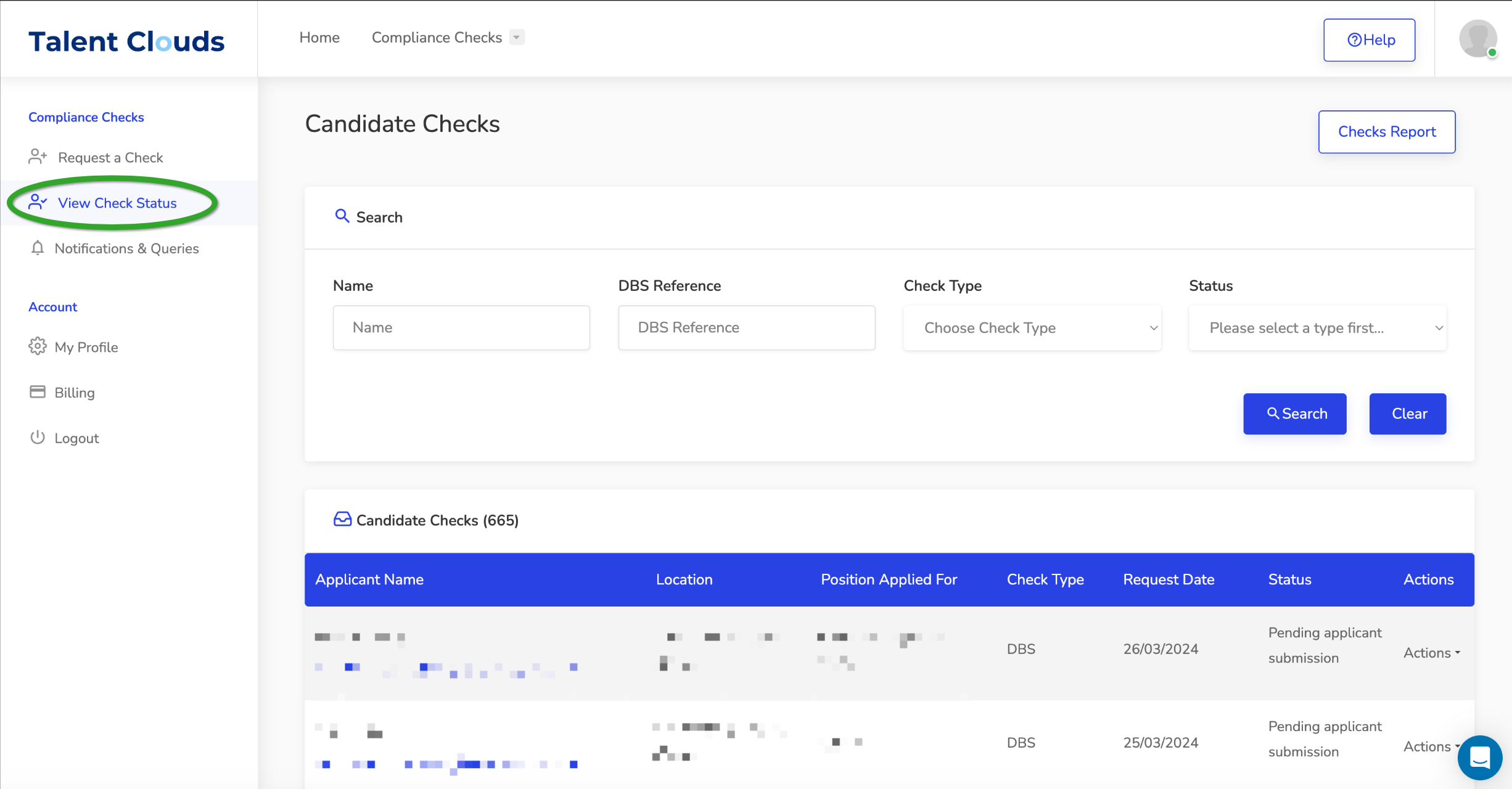
Search and filtering
Use the search fields at the top to find candidates and filter by check details.
- Checks Report. Select this at the top right for more detailed filtering and an export.
- Key dates. Requested, candidate submitted, check finalised and disclosure issue dates.
- DBS details. Disclosure type, barred list and volunteer status.
- Applicant information. Name and email address.
DBS application statuses
- Pending Application Submission. You created the request, but the applicant has not submitted their form. View Check Summary shows their saved progress.
- Waiting for Employer. The applicant has submitted. The admin who requested the check must review it and submit it for countersigning.
- Submitted to DBS. The application is with the countersignatory or DBS.
- Complete. A DBS result has been received. The requesting admin receives an email.
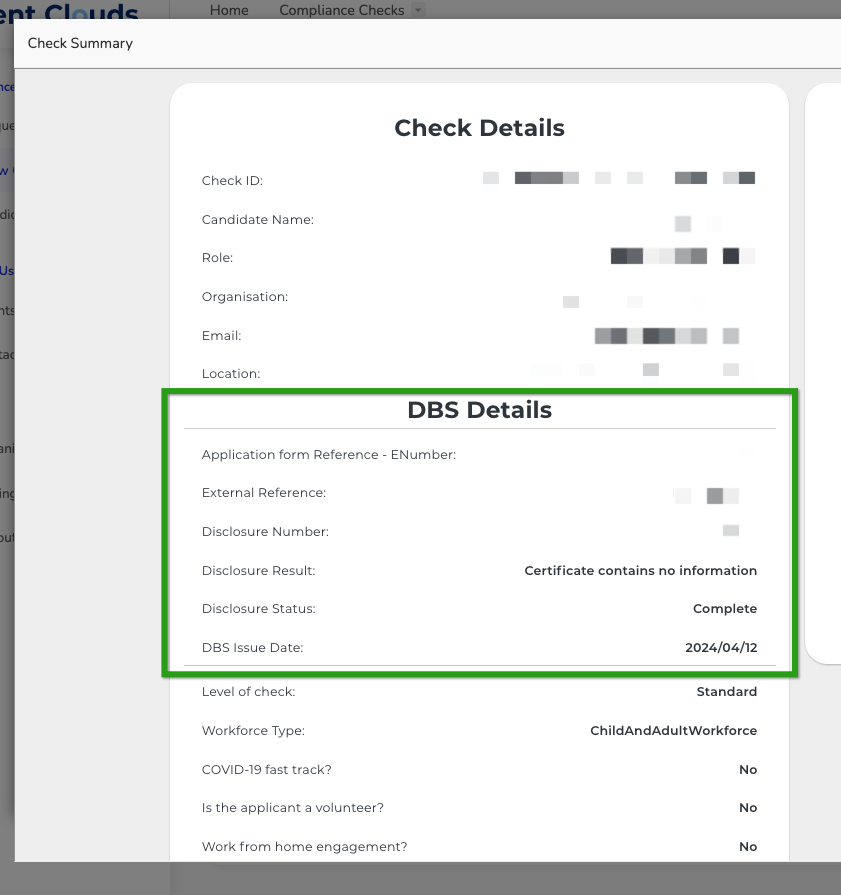
What the result summary shows
- Application form reference (ENumber). Select this to open the DBS tracking service.
- External Reference. An internal reference; no action is needed.
- Disclosure Number. Issued when the result is returned.
- Disclosure Result. The outcome, such as Certificate contains no information.
- Disclosure Status. Usually Application Received or Complete.
- DBS Issue Date. The date DBS issued the result.
Right to Work statuses
The applicant must have a valid UK or Irish passport to complete the digital Right to Work check.
- Created. The check is waiting for the applicant to complete it.
- Complete Clear. The applicant completed the check and it is valid.
Only the admin who requested a DBS check can approve it. If they are away for more than two days, message us through live chat.
Was this guide helpful?